Set up Google Cloud Pub/Sub so replies to your outreach reach ReachCrew within moments and stop the sequence.
Sending email works as soon as Google Workspace is connected. Replies do not arrive until you also set up Pub/Sub. ReachCrew only learns about new mail when Gmail pushes a notification to it, so without this page, replies are not picked up and a sequence keeps going after someone answers.
What you need
Google Workspace already connected, with the same Google Cloud project.
Permission to create Pub/Sub topics and edit their access in that project.
A public HTTPS address for your ReachCrew (your BETTER_AUTH_URL) with a valid certificate. A localhost install cannot receive pushes.
Ability to schedule one daily call to ReachCrew (Production setup).
Gmail does not call you when mail arrives, unless you ask it to. ReachCrew asks Gmail to “watch” each connected mailbox’s inbox and publish to a Pub/Sub topic. A push subscription forwards each notification to ReachCrew, which fetches the new messages, matches them to the lead and moves the conversation along in the CRM.A Gmail watch expires after about seven days. Google’s documentation says to call watch at least every 7 days and recommends once a day. ReachCrew does this as part of its daily rollover, which runs inside the app, so there is nothing to schedule (step 5).
1
Create a topic
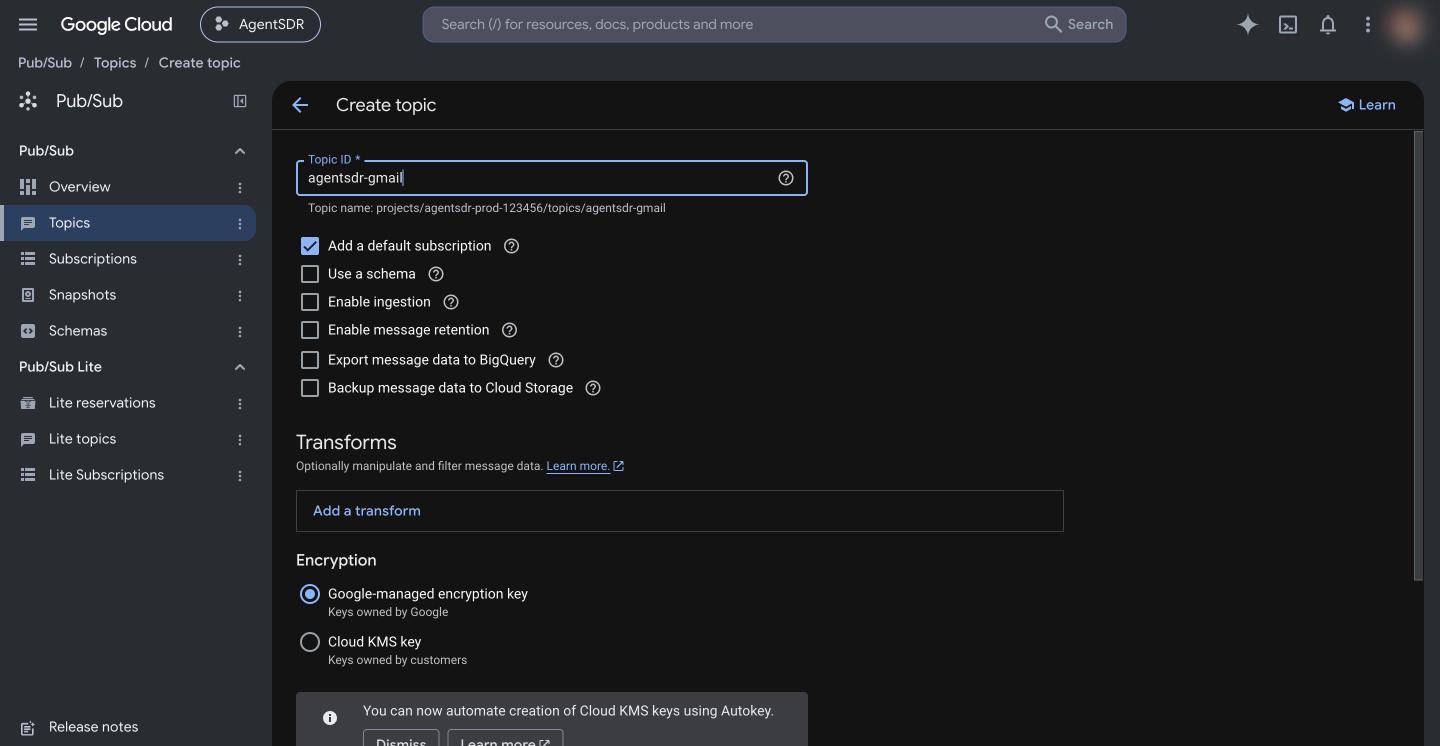
In the Google Cloud console pick the same project you used for Workspace, open Pub/Sub → Topics and click Create topic. Enter a Topic ID such as reachcrew-gmail. You can untick Add a default subscription, because you create a push subscription in step 4. Click Create topic.The topic’s full name is projects/<project-id>/topics/<topic-id>, for example projects/my-project/topics/reachcrew-gmail. You can copy it from the topic page.
The full topic name under the field is what ReachCrew asks for.
2
Let Gmail publish to the topic
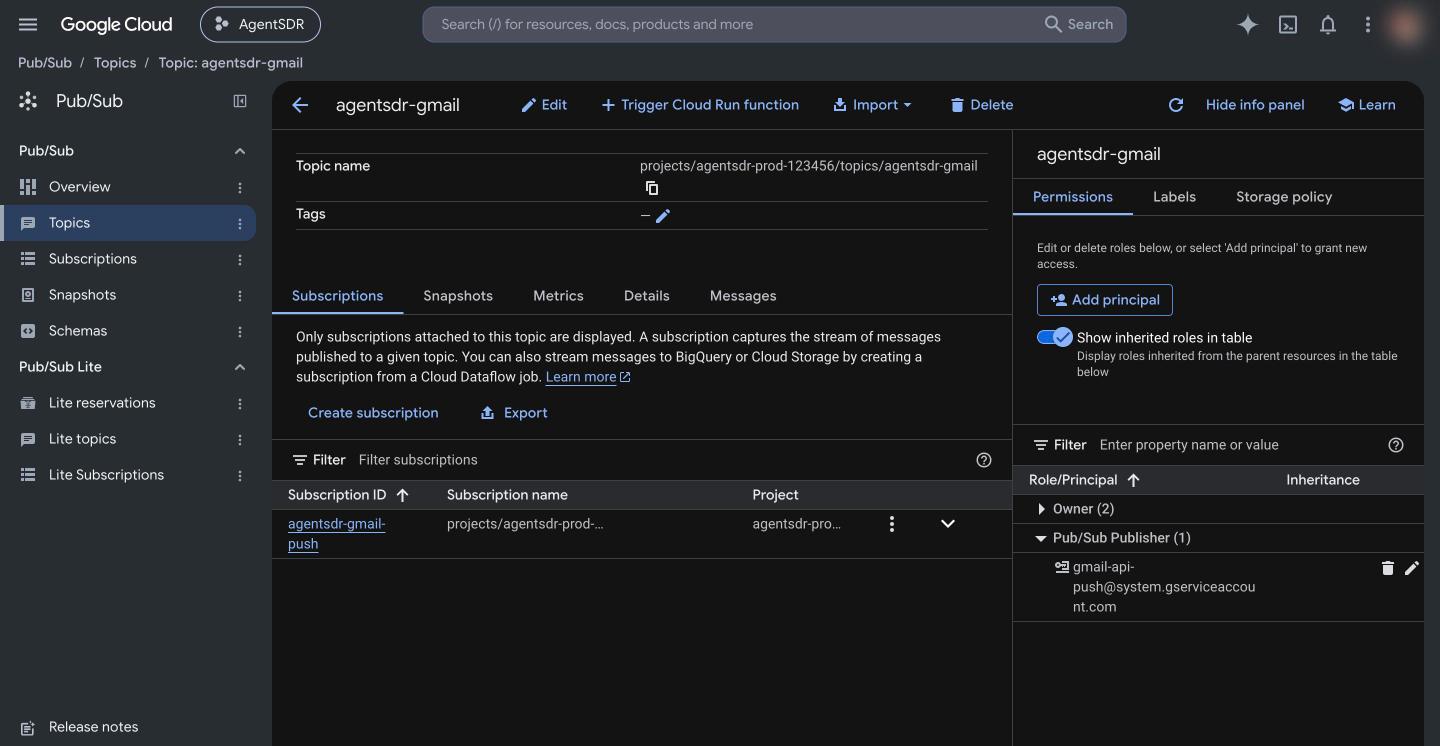
Open the topic, show the Permissions panel (the info panel on the right, or the Permissions tab), click Add principal and enter:
gmail-api-push@system.gserviceaccount.com
Choose the role Pub/Sub Publisher and save. This is a Google-owned account; it is how Gmail is allowed to write notifications to your topic. Without it, registering a watch fails.
When the grant is in place, the topic Permissions panel lists the Gmail push account under Pub/Sub Publisher.
3
Save the topic name in ReachCrew
Open Settings → Email → Connection, click Edit on the Google Workspace card and paste the full name into Gmail Pub/Sub topic, for example projects/my-project/topics/reachcrew-gmail. Leave Private key blank to keep the saved key. Click Save. ReachCrew refuses a value that does not match projects/<project>/topics/<topic>.
4
Create a push subscription
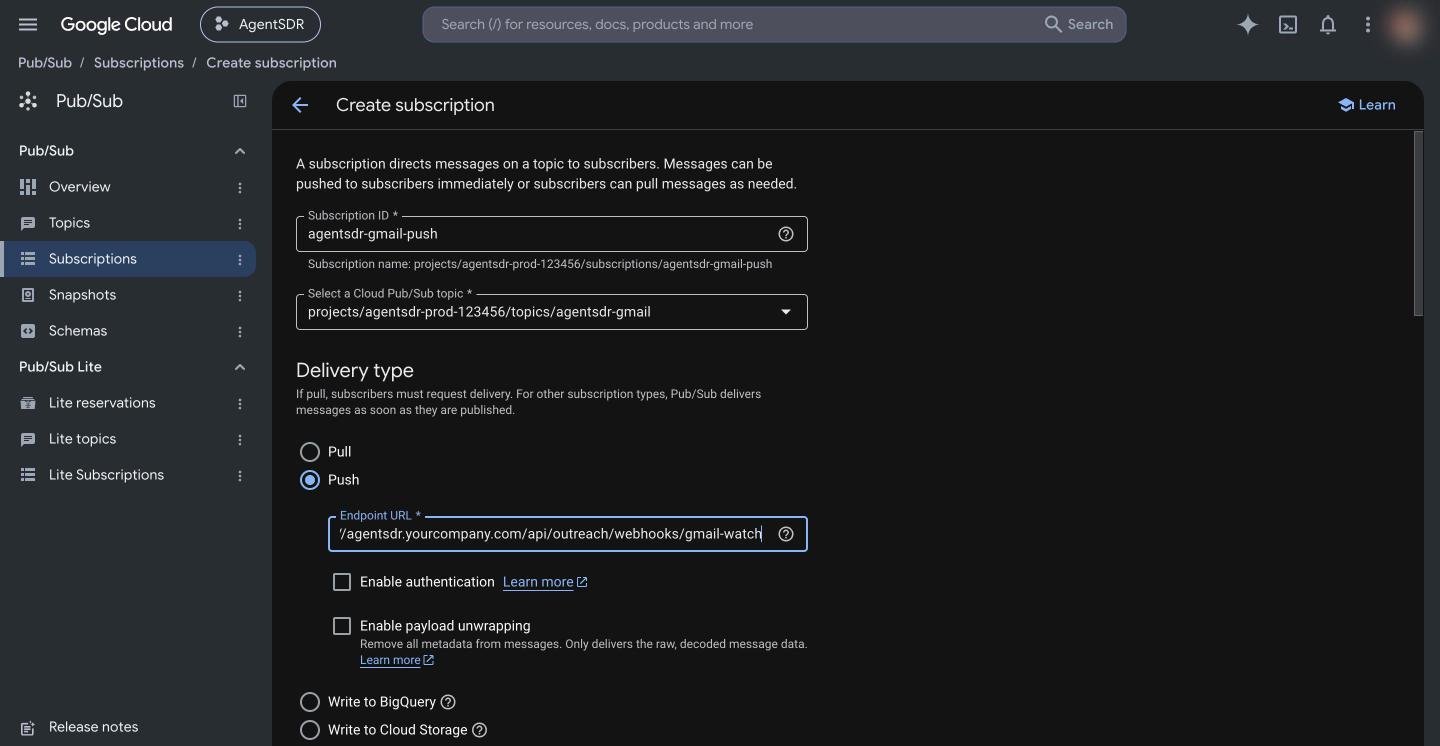
Open Pub/Sub → Subscriptions and click Create subscription. Enter a Subscription ID (for example reachcrew-gmail-push), select your topic, and set Delivery type to Push. In Endpoint URL enter:
Replace <your-domain> with your public address (the same host as BETTER_AUTH_URL). Google requires a publicly reachable HTTPS endpoint with a certificate from a certificate authority. Leave the other options at their defaults and click Create.There is no secret to add. Pub/Sub push cannot carry one, so the endpoint only acts on addresses that are connected mailboxes in ReachCrew and acknowledges everything else. See Pub/Sub push docs.
Choose Push and paste your ReachCrew gmail-watch endpoint.
5
Register the watch now
ReachCrew renews the watches in its daily rollover (at the start of each organization’s day, see Settings, Organization, Defaults), not when you add a mailbox. To register yours right away instead of waiting, call the renewal endpoint once. It needs OUTREACH_TICK_SECRET set in the app environment (optional otherwise):
curl -fsS -X POST -H "x-tick-secret: $OUTREACH_TICK_SECRET" "https://<your-domain>/api/outreach/mailboxes/watch"
The secret is your OUTREACH_TICK_SECRET (sent as the x-tick-secret header or ?secret=). Without it the endpoint answers 401; add ?force=1 to run it even if today’s rollover already did. The reply lists each mailbox with ok: true, or an error. Organizations that have no topic saved are listed under skipped with gmail_watch_topic_not_configured. Calling it from an external cron instead is covered in Production setup.
Gmail pub/sub topic must look like projects/<project>/topics/<topic>
The field holds something else, such as just the topic name. Use the full name from the topic page.
Watch result shows an error mentioning the topic or User not authorized
Gmail could not publish to your topic. Check step 2: the principal gmail-api-push@system.gserviceaccount.com must have Pub/Sub Publisher on that exact topic, and the topic must be in the project named in the field.
skipped: gmail_watch_topic_not_configured
No topic is saved on the Google Workspace card. Do step 3.
skipped: google_not_connected
Google Workspace is not connected for that organization. See Google Workspace.
401 unauthorized from the watch endpoint
OUTREACH_TICK_SECRET is unset in the app, or the value you sent differs. It is optional and only needed for this manual call; set it in your environment, see Configuration.
Replies worked, then stopped after about a week
The watch expired because the daily rollover is not running. Check the app log for [scheduler] lines (see Troubleshooting), and run step 5 once by hand.
Pub/Sub shows delivery errors or a growing backlog
The endpoint is not reachable over HTTPS, the certificate is invalid, or a firewall blocks Google. Open the URL path from outside your network; a POST should answer 200. Note that ReachCrew answers 200 even for pushes it ignores, so only unreachable endpoints cause retries.
{"docsConfig":{"theme":"mint","$schema":"https://mintlify.com/docs.json","name":"ReachCrew","description":"The open-source AI SDR: find leads, reach them on email, LinkedIn and WhatsApp, and let AI work every reply, from one workspace you run yourself.","colors":{"primary":"#335cff","light":"#5b7bff","dark":"#1f3bad"},"logo":{"light":"https://mintcdn.com/recahcrew/b3LOEBKCy3btecGb/assets/logo-light.svg?fit=max\u0026auto=format\u0026n=b3LOEBKCy3btecGb\u0026q=85\u0026s=5f8cfd64a1c15e42c96a309144aac39a","dark":"https://mintcdn.com/recahcrew/b3LOEBKCy3btecGb/assets/logo-dark.svg?fit=max\u0026auto=format\u0026n=b3LOEBKCy3btecGb\u0026q=85\u0026s=c8de838080aa865de4a2aecef52e8077","href":"https://reachcrew.ai"},"favicon":"https://mintcdn.com/recahcrew/b3LOEBKCy3btecGb/assets/logo.svg?fit=max\u0026auto=format\u0026n=b3LOEBKCy3btecGb\u0026q=85\u0026s=850db680a389217504579943797affd4","navbar":{"links":[{"href":"/help","label":"Get help"},{"href":"https://reachcrew.ai","label":"Website"}],"primary":{"type":"github","href":"https://github.com/rishav887/reachcrew"}},"footer":{"socials":{"github":"https://github.com/rishav887/reachcrew","website":"https://reachcrew.ai"},"links":[{"header":"Community","items":[{"label":"Ask a question","href":"https://github.com/rishav887/reachcrew/discussions"},{"label":"Report a bug","href":"https://github.com/rishav887/reachcrew/issues/new?template=bug_report.yml"},{"label":"Request a feature","href":"https://github.com/rishav887/reachcrew/issues/new?template=feature_request.yml"},{"label":"Report a security issue","href":"https://github.com/rishav887/reachcrew/security/advisories/new"}]},{"header":"Project","items":[{"label":"GitHub","href":"https://github.com/rishav887/reachcrew"},{"label":"Changelog","href":"https://github.com/rishav887/reachcrew/blob/main/CHANGELOG.md"},{"label":"Contributing","href":"https://github.com/rishav887/reachcrew/blob/main/CONTRIBUTING.md"},{"label":"License (MIT)","href":"https://github.com/rishav887/reachcrew/blob/main/LICENSE"}]}]},"icons":{"library":"lucide"},"contextual":{"options":["copy","view","chatgpt","claude"],"display":"header"},"navigation":{"pages":[]}},"deployment":{"deploymentMetadataValue":{"subdomain":"recahcrew","hasAudioNarration":false,"actualSubdomain":"recahcrew","customDomains":[],"gitSource":{"type":"github","owner":"rishav887","repo":"linkedin-outreach-platform","deployBranch":"main","contentDirectory":"docs","isPrivate":true,"mountPath":"","label":"","_id":"6af6f68f902237199e0ed1f3"},"entitlements":{"AI_CHAT":{"status":"ENABLED"},"WEB_MCP":{"status":"ENABLED"},"NARRATION":{"status":"ENABLED"}},"buildId":"6af6f6ac902237199e0ed38d","clientVersion":"0.0.4124","searchFilterCounts":[{"language":"default","tag":"Guides","count":29},{"language":"default","tag":"Self-hosting","count":29},{"language":"default","tag":"Integrations","count":9},{"language":"default","tag":"AI CRM","count":5},{"language":"default","tag":"Developers","count":4},{"language":"default","tag":"Get started","count":4},{"language":"default","tag":"Email","count":3},{"language":"default","tag":"Leads","count":3},{"language":"default","tag":"LinkedIn","count":3},{"language":"default","tag":"Tables","count":3}]},"assistantConfig":{"enableAskAiButton":false,"enableStarterQuestions":false,"enableContextualStarterQuestions":false,"enableAskAiSearchBar":true},"basePath":"","hasChatPermissions":true,"hasWebMcpPermissions":true,"toggles":[{"name":"kill-isr","enabled":true,"variant":{"name":"disabled","enabled":false,"feature_enabled":true},"impressionData":false},{"name":"custom-rbac-roles","enabled":true,"variant":{"name":"disabled","enabled":false,"feature_enabled":true},"impressionData":false},{"name":"agent-mintlify-slack","enabled":true,"variant":{"name":"disabled","enabled":false,"feature_enabled":true},"impressionData":false},{"name":"agent-integrations-settings","enabled":true,"variant":{"name":"disabled","enabled":false,"feature_enabled":true},"impressionData":false},{"name":"rbac-expansion","enabled":true,"variant":{"name":"disabled","enabled":false,"feature_enabled":true},"impressionData":false},{"name":"automations-pr-grouping","enabled":true,"variant":{"name":"disabled","enabled":false,"feature_enabled":true},"impressionData":false},{"name":"custom-prefix","enabled":true,"variant":{"name":"disabled","enabled":false,"feature_enabled":true},"impressionData":false},{"name":"analytics-v7","enabled":true,"variant":{"name":"disabled","enabled":false,"feature_enabled":true},"impressionData":false},{"name":"user-flows-analytics","enabled":true,"variant":{"name":"disabled","enabled":false,"feature_enabled":true},"impressionData":false},{"name":"no-publish-flow","enabled":true,"variant":{"name":"disabled","enabled":false,"feature_enabled":true},"impressionData":false},{"name":"workos-onboarding","enabled":true,"variant":{"name":"disabled","enabled":false,"feature_enabled":true},"impressionData":false},{"name":"snapshot-serving-live","enabled":true,"variant":{"name":"disabled","enabled":false,"feature_enabled":true},"impressionData":false},{"name":"stripTemperatureMiddleware","enabled":true,"variant":{"name":"disabled","enabled":false,"feature_enabled":true},"impressionData":false},{"name":"support-platform-pylon-zendesk","enabled":true,"variant":{"name":"disabled","enabled":false,"feature_enabled":true},"impressionData":false},{"name":"snapshot-serving","enabled":true,"variant":{"name":"disabled","enabled":false,"feature_enabled":true},"impressionData":false},{"name":"instant-rollback","enabled":true,"variant":{"name":"disabled","enabled":false,"feature_enabled":true},"impressionData":false},{"name":"granular-notifications-server","enabled":true,"variant":{"name":"disabled","enabled":false,"feature_enabled":true},"impressionData":false},{"name":"granular-notifications","enabled":true,"variant":{"name":"disabled","enabled":false,"feature_enabled":true},"impressionData":false},{"name":"automations-fable","enabled":true,"variant":{"name":"disabled","enabled":false,"feature_enabled":true},"impressionData":false},{"name":"fixed-ai-action-pricing","enabled":true,"variant":{"name":"disabled","enabled":false,"feature_enabled":true},"impressionData":false},{"name":"automation-resolve-merge-conflict","enabled":true,"variant":{"name":"disabled","enabled":false,"feature_enabled":true},"impressionData":false},{"name":"scoped-publishing","enabled":true,"variant":{"name":"disabled","enabled":false,"feature_enabled":true},"impressionData":false},{"name":"mintql","enabled":true,"variant":{"name":"disabled","enabled":false,"feature_enabled":true},"impressionData":false},{"name":"page-level-analytics","enabled":true,"variant":{"name":"disabled","enabled":false,"feature_enabled":true},"impressionData":false},{"name":"editor-version-history-v2","enabled":true,"variant":{"name":"disabled","enabled":false,"feature_enabled":true},"impressionData":false},{"name":"billing-page-v2","enabled":true,"variant":{"name":"disabled","enabled":false,"feature_enabled":true},"impressionData":false},{"name":"full-page-search","enabled":true,"variant":{"name":"disabled","enabled":false,"feature_enabled":true},"impressionData":false},{"name":"workspace-projects","enabled":true,"variant":{"name":"disabled","enabled":false,"feature_enabled":true},"impressionData":false},{"name":"assistant-v5","enabled":true,"variant":{"name":"disabled","enabled":false,"feature_enabled":true},"impressionData":false},{"name":"fork-pr-previews","enabled":true,"variant":{"name":"disabled","enabled":false,"feature_enabled":true},"impressionData":false},{"name":"revalidation-jwt","enabled":true,"variant":{"name":"disabled","enabled":false,"feature_enabled":true},"impressionData":false},{"name":"workos-sso-scim","enabled":true,"variant":{"name":"disabled","enabled":false,"feature_enabled":true},"impressionData":false},{"name":"hobby-abuse-scan","enabled":true,"variant":{"name":"disabled","enabled":false,"feature_enabled":true},"impressionData":false},{"name":"dashboard-inbox","enabled":true,"variant":{"name":"disabled","enabled":false,"feature_enabled":true},"impressionData":false},{"name":"workos-signup","enabled":true,"variant":{"name":"disabled","enabled":false,"feature_enabled":true},"impressionData":false},{"name":"turbopuffer-dual-write","enabled":true,"variant":{"name":"disabled","enabled":false,"feature_enabled":true},"impressionData":false},{"name":"workos-enabled","enabled":true,"variant":{"name":"disabled","enabled":false,"feature_enabled":true},"impressionData":false},{"name":"approve-review-flow","enabled":true,"variant":{"name":"disabled","enabled":false,"feature_enabled":true},"impressionData":false},{"name":"editor-metadata","enabled":true,"variant":{"name":"disabled","enabled":false,"feature_enabled":true},"impressionData":false},{"name":"sso-setup-deadline-banner","enabled":true,"variant":{"name":"disabled","enabled":false,"feature_enabled":true},"impressionData":false},{"name":"turbopuffer-serve","enabled":true,"variant":{"name":"disabled","enabled":false,"feature_enabled":true},"impressionData":false},{"name":"live-agents","enabled":true,"variant":{"name":"disabled","enabled":false,"feature_enabled":true},"impressionData":false},{"name":"llms-txt-v2","enabled":true,"variant":{"name":"disabled","enabled":false,"feature_enabled":true},"impressionData":false}],"googleFontsInlined":false},"customCss":[],"page":{"pagePath":"integrations/gmail-reply-sync","slug":"/integrations/gmail-reply-sync","pageMetadata":{"title":"Gmail reply sync","description":"Set up Google Cloud Pub/Sub so replies to your outreach reach ReachCrew within moments and stop the sequence.","icon":"inbox","href":"/integrations/gmail-reply-sync"},"description":{"compiledSource":"\"use strict\";\nconst {jsx: _jsx} = arguments[0];\nconst {useMDXComponents: _provideComponents} = arguments[0];\nfunction _createMdxContent(props) {\n const _components = {\n p: \"p\",\n ..._provideComponents(),\n ...props.components\n };\n return _jsx(_components.p, {\n children: \"Set up Google Cloud Pub/Sub so replies to your outreach reach ReachCrew within moments and stop the sequence.\"\n });\n}\nfunction MDXContent(props = {}) {\n const {wrapper: MDXLayout} = {\n ..._provideComponents(),\n ...props.components\n };\n return MDXLayout ? _jsx(MDXLayout, {\n ...props,\n children: _jsx(_createMdxContent, {\n ...props\n })\n }) : _createMdxContent(props);\n}\nreturn {\n default: MDXContent\n};\n","frontmatter":{},"scope":{}},"pageType":"default","mdx":{"mdxSource":{"compiledSource":"\"use strict\";const{Fragment:_Fragment,jsx:_jsx,jsxs:_jsxs}=arguments[0];const{useMDXComponents:_provideComponents}=arguments[0];function _createMdxContent(props){const _components={a:`a`,code:`code`,li:`li`,ol:`ol`,p:`p`,pre:`pre`,span:`span`,strong:`strong`,ul:`ul`,..._provideComponents(),...props.components},{Accordion,AccordionGroup,Card,CardGroup,CodeBlock,Frame,Heading,Info,Mermaid,Note,OptimizedImage,Step,Steps}=_components;if(!Accordion)_missingMdxReference(`Accordion`,true);if(!AccordionGroup)_missingMdxReference(`AccordionGroup`,true);if(!Card)_missingMdxReference(`Card`,true);if(!CardGroup)_missingMdxReference(`CardGroup`,true);if(!CodeBlock)_missingMdxReference(`CodeBlock`,true);if(!Frame)_missingMdxReference(`Frame`,true);if(!Heading)_missingMdxReference(`Heading`,true);if(!Info)_missingMdxReference(`Info`,true);if(!Mermaid)_missingMdxReference(`Mermaid`,true);if(!Note)_missingMdxReference(`Note`,true);if(!OptimizedImage)_missingMdxReference(`OptimizedImage`,true);if(!Step)_missingMdxReference(`Step`,true);if(!Steps)_missingMdxReference(`Steps`,true);return _jsxs(_Fragment,{children:[_jsxs(_components.p,{children:[`Sending email works as soon as `,_jsx(_components.a,{href:`/integrations/google-workspace`,children:`Google Workspace`}),` is connected. Replies do not arrive until you also set up Pub/Sub. ReachCrew only learns about new mail when Gmail pushes a notification to it, so without this page, replies are not picked up and a sequence keeps going after someone answers.`]}),`\n`,_jsxs(Info,{children:[_jsx(_components.p,{children:_jsx(_components.strong,{children:`What you need`})}),_jsxs(_components.ul,{children:[`\n`,_jsxs(_components.li,{children:[_jsx(_components.a,{href:`/integrations/google-workspace`,children:`Google Workspace`}),` already connected, with the same Google Cloud project.`]}),`\n`,_jsx(_components.li,{children:`Permission to create Pub/Sub topics and edit their access in that project.`}),`\n`,_jsxs(_components.li,{children:[`A public `,_jsx(_components.strong,{children:`HTTPS`}),` address for your ReachCrew (your `,_jsx(_components.code,{children:`BETTER_AUTH_URL`}),`) with a valid certificate. A `,_jsx(_components.code,{children:`localhost`}),` install cannot receive pushes.`]}),`\n`,_jsxs(_components.li,{children:[`Ability to schedule one daily call to ReachCrew (`,_jsx(_components.a,{href:`/self-hosting/production`,children:`Production setup`}),`).`]}),`\n`,_jsx(_components.li,{children:`About 15 minutes.`}),`\n`]})]}),`\n`,_jsx(Heading,{level:`2`,id:`overview`,children:`Overview`}),`\n`,_jsx(_components.p,{children:`Gmail does not call you when mail arrives, unless you ask it to. ReachCrew asks Gmail to “watch” each connected mailbox’s inbox and publish to a Pub/Sub topic. A push subscription forwards each notification to ReachCrew, which fetches the new messages, matches them to the lead and moves the conversation along in the CRM.`}),`\n`,_jsx(Mermaid,{chart:`flowchart LR\n A[Lead replies in Gmail] --> B[Gmail watch]\n B --> C[Pub/Sub topic]\n C --> D[Push subscription]\n D --> E[\"ReachCrew /api/outreach/webhooks/gmail-watch\"]\n E --> F[Fetch new mail, match lead]\n F --> G[CRM conversation, sequence stops]`}),`\n`,_jsxs(_components.p,{children:[`A Gmail watch expires after about seven days. Google’s documentation says to call `,_jsx(_components.code,{children:`watch`}),` at least every 7 days and recommends once a day. ReachCrew does this as part of its daily rollover, which runs inside the app, so there is nothing to schedule (step 5).`]}),`\n`,_jsxs(Steps,{children:[_jsxs(Step,{title:`Create a topic`,children:[_jsxs(_components.p,{children:[`In the `,_jsx(_components.a,{href:`https://console.cloud.google.com`,children:`Google Cloud console`}),` pick the same project you used for Workspace, open `,_jsx(_components.strong,{children:`Pub/Sub → Topics`}),` and click `,_jsx(_components.strong,{children:`Create topic`}),`. Enter a Topic ID such as `,_jsx(_components.code,{children:`reachcrew-gmail`}),`. You can untick `,_jsx(_components.strong,{children:`Add a default subscription`}),`, because you create a push subscription in step 4. Click `,_jsx(_components.strong,{children:`Create topic`}),`.`]}),_jsxs(_components.p,{children:[`The topic’s full name is `,_jsx(_components.code,{children:`projects/\u003cproject-id>/topics/\u003ctopic-id>`}),`, for example `,_jsx(_components.code,{children:`projects/my-project/topics/reachcrew-gmail`}),`. You can copy it from the topic page.`]}),_jsx(Frame,{caption:`The full topic name under the field is what ReachCrew asks for.`,children:_jsx(OptimizedImage,{src:`https://mintcdn.com/recahcrew/b3LOEBKCy3btecGb/assets/screenshots/google/pubsub-create-topic.jpg?fit=max\u0026auto=format\u0026n=b3LOEBKCy3btecGb\u0026q=85\u0026s=03ee9a63bdabafc0ff6101c60f2a0195`,alt:`Pub/Sub Create topic form with a Topic ID filled in`,\"data-og-width\":`1440`,width:`1440`,\"data-og-height\":`746`,height:`746`,\"data-path\":`assets/screenshots/google/pubsub-create-topic.jpg`,\"data-optimize\":`true`,\"data-opv\":`3`,srcset:`https://mintcdn.com/recahcrew/b3LOEBKCy3btecGb/assets/screenshots/google/pubsub-create-topic.jpg?w=280\u0026fit=max\u0026auto=format\u0026n=b3LOEBKCy3btecGb\u0026q=85\u0026s=7e1e2c22e26ab0da2b36e0c52eeaa0ed 280w, https://mintcdn.com/recahcrew/b3LOEBKCy3btecGb/assets/screenshots/google/pubsub-create-topic.jpg?w=560\u0026fit=max\u0026auto=format\u0026n=b3LOEBKCy3btecGb\u0026q=85\u0026s=04c894b27e99a546b1b69407cadae491 560w, https://mintcdn.com/recahcrew/b3LOEBKCy3btecGb/assets/screenshots/google/pubsub-create-topic.jpg?w=840\u0026fit=max\u0026auto=format\u0026n=b3LOEBKCy3btecGb\u0026q=85\u0026s=7e9792e24b4c0820c25c630927ec62c5 840w, https://mintcdn.com/recahcrew/b3LOEBKCy3btecGb/assets/screenshots/google/pubsub-create-topic.jpg?w=1100\u0026fit=max\u0026auto=format\u0026n=b3LOEBKCy3btecGb\u0026q=85\u0026s=cfef09fa466ee2d8d11c7cfab103e4f1 1100w, https://mintcdn.com/recahcrew/b3LOEBKCy3btecGb/assets/screenshots/google/pubsub-create-topic.jpg?w=1650\u0026fit=max\u0026auto=format\u0026n=b3LOEBKCy3btecGb\u0026q=85\u0026s=2a3135c36b7d54adf3d5fa57187b4164 1650w, https://mintcdn.com/recahcrew/b3LOEBKCy3btecGb/assets/screenshots/google/pubsub-create-topic.jpg?w=2500\u0026fit=max\u0026auto=format\u0026n=b3LOEBKCy3btecGb\u0026q=85\u0026s=da08845400219732b486900fcfce9c13 2500w`})})]}),_jsxs(Step,{title:`Let Gmail publish to the topic`,children:[_jsxs(_components.p,{children:[`Open the topic, show the `,_jsx(_components.strong,{children:`Permissions`}),` panel (the info panel on the right, or the `,_jsx(_components.strong,{children:`Permissions`}),` tab), click `,_jsx(_components.strong,{children:`Add principal`}),` and enter:`]}),_jsx(CodeBlock,{filename:``,numberOfLines:`2`,language:`text`,children:_jsx(_components.pre,{className:`shiki shiki-themes github-light-default dark-plus`,style:{backgroundColor:`#ffffff`,\"--shiki-dark-bg\":`#0B0C0E`,color:`#1f2328`,\"--shiki-dark\":`#D4D4D4`},language:`text`,children:_jsxs(_components.code,{language:`text`,numberOfLines:`2`,children:[_jsx(_components.span,{className:`line`,children:_jsx(_components.span,{children:`gmail-api-push@system.gserviceaccount.com`})}),`\n`,_jsx(_components.span,{className:`line`,children:_jsx(_components.span,{})})]})})}),_jsxs(_components.p,{children:[`Choose the role `,_jsx(_components.strong,{children:`Pub/Sub Publisher`}),` and save. This is a Google-owned account; it is how Gmail is allowed to write notifications to your topic. Without it, registering a watch fails.`]}),_jsx(Frame,{caption:`When the grant is in place, the topic Permissions panel lists the Gmail push account under Pub/Sub Publisher.`,children:_jsx(OptimizedImage,{src:`https://mintcdn.com/recahcrew/b3LOEBKCy3btecGb/assets/screenshots/google/pubsub-topic-publisher.jpg?fit=max\u0026auto=format\u0026n=b3LOEBKCy3btecGb\u0026q=85\u0026s=ba7450a7ce9e8dbaf1449877ccd4e940`,alt:`Topic Permissions panel listing gmail-api-push@system.gserviceaccount.com under Pub/Sub Publisher`,\"data-og-width\":`1440`,width:`1440`,\"data-og-height\":`746`,height:`746`,\"data-path\":`assets/screenshots/google/pubsub-topic-publisher.jpg`,\"data-optimize\":`true`,\"data-opv\":`3`,srcset:`https://mintcdn.com/recahcrew/b3LOEBKCy3btecGb/assets/screenshots/google/pubsub-topic-publisher.jpg?w=280\u0026fit=max\u0026auto=format\u0026n=b3LOEBKCy3btecGb\u0026q=85\u0026s=320bcd3450f1f2af615c1af03ab6d84e 280w, https://mintcdn.com/recahcrew/b3LOEBKCy3btecGb/assets/screenshots/google/pubsub-topic-publisher.jpg?w=560\u0026fit=max\u0026auto=format\u0026n=b3LOEBKCy3btecGb\u0026q=85\u0026s=499ce9c6a2bc3a40c768bf2d77c9c656 560w, https://mintcdn.com/recahcrew/b3LOEBKCy3btecGb/assets/screenshots/google/pubsub-topic-publisher.jpg?w=840\u0026fit=max\u0026auto=format\u0026n=b3LOEBKCy3btecGb\u0026q=85\u0026s=837a1c6cc98146178a4322ebe4429a65 840w, https://mintcdn.com/recahcrew/b3LOEBKCy3btecGb/assets/screenshots/google/pubsub-topic-publisher.jpg?w=1100\u0026fit=max\u0026auto=format\u0026n=b3LOEBKCy3btecGb\u0026q=85\u0026s=61108910303cf62cdfcd46e9a5bc4300 1100w, https://mintcdn.com/recahcrew/b3LOEBKCy3btecGb/assets/screenshots/google/pubsub-topic-publisher.jpg?w=1650\u0026fit=max\u0026auto=format\u0026n=b3LOEBKCy3btecGb\u0026q=85\u0026s=aa6b02f2429275e6d83d274da2606682 1650w, https://mintcdn.com/recahcrew/b3LOEBKCy3btecGb/assets/screenshots/google/pubsub-topic-publisher.jpg?w=2500\u0026fit=max\u0026auto=format\u0026n=b3LOEBKCy3btecGb\u0026q=85\u0026s=bcb42df75d3c2ee0b3b5b9389e1dd0c2 2500w`})})]}),_jsx(Step,{title:`Save the topic name in ReachCrew`,children:_jsxs(_components.p,{children:[`Open `,_jsx(_components.strong,{children:`Settings → Email → Connection`}),`, click `,_jsx(_components.strong,{children:`Edit`}),` on the `,_jsx(_components.strong,{children:`Google Workspace`}),` card and paste the full name into `,_jsx(_components.strong,{children:`Gmail Pub/Sub topic`}),`, for example `,_jsx(_components.code,{children:`projects/my-project/topics/reachcrew-gmail`}),`. Leave `,_jsx(_components.strong,{children:`Private key`}),` blank to keep the saved key. Click `,_jsx(_components.strong,{children:`Save`}),`. ReachCrew refuses a value that does not match `,_jsx(_components.code,{children:`projects/\u003cproject>/topics/\u003ctopic>`}),`.`]})}),_jsxs(Step,{title:`Create a push subscription`,children:[_jsxs(_components.p,{children:[`Open `,_jsx(_components.strong,{children:`Pub/Sub → Subscriptions`}),` and click `,_jsx(_components.strong,{children:`Create subscription`}),`. Enter a Subscription ID (for example `,_jsx(_components.code,{children:`reachcrew-gmail-push`}),`), select your topic, and set `,_jsx(_components.strong,{children:`Delivery type`}),` to `,_jsx(_components.strong,{children:`Push`}),`. In `,_jsx(_components.strong,{children:`Endpoint URL`}),` enter:`]}),_jsx(CodeBlock,{filename:``,numberOfLines:`2`,language:`text`,children:_jsx(_components.pre,{className:`shiki shiki-themes github-light-default dark-plus`,style:{backgroundColor:`#ffffff`,\"--shiki-dark-bg\":`#0B0C0E`,color:`#1f2328`,\"--shiki-dark\":`#D4D4D4`},language:`text`,children:_jsxs(_components.code,{language:`text`,numberOfLines:`2`,children:[_jsx(_components.span,{className:`line`,children:_jsx(_components.span,{children:`https://\u003cyour-domain>/api/outreach/webhooks/gmail-watch`})}),`\n`,_jsx(_components.span,{className:`line`,children:_jsx(_components.span,{})})]})})}),_jsxs(_components.p,{children:[`Replace `,_jsx(_components.code,{children:`\u003cyour-domain>`}),` with your public address (the same host as `,_jsx(_components.code,{children:`BETTER_AUTH_URL`}),`). Google requires a publicly reachable HTTPS endpoint with a certificate from a certificate authority. Leave the other options at their defaults and click `,_jsx(_components.strong,{children:`Create`}),`.`]}),_jsxs(_components.p,{children:[`There is no secret to add. Pub/Sub push cannot carry one, so the endpoint only acts on addresses that are connected mailboxes in ReachCrew and acknowledges everything else. See `,_jsx(_components.a,{href:`https://docs.cloud.google.com/pubsub/docs/create-push-subscription`,children:`Pub/Sub push docs`}),`.`]}),_jsx(Frame,{caption:`Choose Push and paste your ReachCrew gmail-watch endpoint.`,children:_jsx(OptimizedImage,{src:`https://mintcdn.com/recahcrew/b3LOEBKCy3btecGb/assets/screenshots/google/pubsub-push-subscription.jpg?fit=max\u0026auto=format\u0026n=b3LOEBKCy3btecGb\u0026q=85\u0026s=ff02e80ef5e238b88d2ff4c49989ba2b`,alt:`Create subscription form with Push delivery and the ReachCrew endpoint URL`,\"data-og-width\":`1440`,width:`1440`,\"data-og-height\":`746`,height:`746`,\"data-path\":`assets/screenshots/google/pubsub-push-subscription.jpg`,\"data-optimize\":`true`,\"data-opv\":`3`,srcset:`https://mintcdn.com/recahcrew/b3LOEBKCy3btecGb/assets/screenshots/google/pubsub-push-subscription.jpg?w=280\u0026fit=max\u0026auto=format\u0026n=b3LOEBKCy3btecGb\u0026q=85\u0026s=0d78399ffcd1833ef89aa51fb9b97c5c 280w, https://mintcdn.com/recahcrew/b3LOEBKCy3btecGb/assets/screenshots/google/pubsub-push-subscription.jpg?w=560\u0026fit=max\u0026auto=format\u0026n=b3LOEBKCy3btecGb\u0026q=85\u0026s=3df1e9f32e0c6542fa62bc0e52286ab0 560w, https://mintcdn.com/recahcrew/b3LOEBKCy3btecGb/assets/screenshots/google/pubsub-push-subscription.jpg?w=840\u0026fit=max\u0026auto=format\u0026n=b3LOEBKCy3btecGb\u0026q=85\u0026s=a643d39308bda5f42fcc02cfef7dbd07 840w, https://mintcdn.com/recahcrew/b3LOEBKCy3btecGb/assets/screenshots/google/pubsub-push-subscription.jpg?w=1100\u0026fit=max\u0026auto=format\u0026n=b3LOEBKCy3btecGb\u0026q=85\u0026s=ba26e47ccfaf3df7a74d717edda9d31a 1100w, https://mintcdn.com/recahcrew/b3LOEBKCy3btecGb/assets/screenshots/google/pubsub-push-subscription.jpg?w=1650\u0026fit=max\u0026auto=format\u0026n=b3LOEBKCy3btecGb\u0026q=85\u0026s=5dbb201d9f74171d264edee97b454985 1650w, https://mintcdn.com/recahcrew/b3LOEBKCy3btecGb/assets/screenshots/google/pubsub-push-subscription.jpg?w=2500\u0026fit=max\u0026auto=format\u0026n=b3LOEBKCy3btecGb\u0026q=85\u0026s=a864e6a41086c4920fc85aff6b3def0c 2500w`})})]}),_jsxs(Step,{title:`Register the watch now`,children:[_jsxs(_components.p,{children:[`ReachCrew renews the watches in its daily rollover (at the start of each organization’s day, see Settings, Organization, Defaults), not when you add a mailbox. To register yours right away instead of waiting, call the renewal endpoint once. It needs `,_jsx(_components.code,{children:`OUTREACH_TICK_SECRET`}),` set in the app environment (optional otherwise):`]}),_jsx(CodeBlock,{filename:``,numberOfLines:`1`,language:`shellscript`,children:_jsx(_components.pre,{className:`shiki shiki-themes github-light-default dark-plus`,style:{backgroundColor:`#ffffff`,\"--shiki-dark-bg\":`#0B0C0E`,color:`#1f2328`,\"--shiki-dark\":`#D4D4D4`},language:`shellscript`,children:_jsxs(_components.code,{language:`shellscript`,numberOfLines:`1`,children:[_jsxs(_components.span,{className:`line`,children:[_jsx(_components.span,{style:{color:`#953800`,\"--shiki-dark\":`#DCDCAA`},children:`curl`}),_jsx(_components.span,{style:{color:`#0550AE`,\"--shiki-dark\":`#569CD6`},children:` -fsS`}),_jsx(_components.span,{style:{color:`#0550AE`,\"--shiki-dark\":`#569CD6`},children:` -X`}),_jsx(_components.span,{style:{color:`#0A3069`,\"--shiki-dark\":`#CE9178`},children:` POST`}),_jsx(_components.span,{style:{color:`#0550AE`,\"--shiki-dark\":`#569CD6`},children:` -H`}),_jsx(_components.span,{style:{color:`#0A3069`,\"--shiki-dark\":`#CE9178`},children:` \"x-tick-secret: `}),_jsx(_components.span,{style:{color:`#1F2328`,\"--shiki-dark\":`#9CDCFE`},children:`$OUTREACH_TICK_SECRET`}),_jsx(_components.span,{style:{color:`#0A3069`,\"--shiki-dark\":`#CE9178`},children:`\"`}),_jsx(_components.span,{style:{color:`#0A3069`,\"--shiki-dark\":`#CE9178`},children:` \"https://\u003cyour-domain>/api/outreach/mailboxes/watch\"`})]}),`\n`]})})}),_jsxs(_components.p,{children:[`The secret is your `,_jsx(_components.code,{children:`OUTREACH_TICK_SECRET`}),` (sent as the `,_jsx(_components.code,{children:`x-tick-secret`}),` header or `,_jsx(_components.code,{children:`?secret=`}),`). Without it the endpoint answers 401; add `,_jsx(_components.code,{children:`?force=1`}),` to run it even if today’s rollover already did. The reply lists each mailbox with `,_jsx(_components.code,{children:`ok: true`}),`, or an `,_jsx(_components.code,{children:`error`}),`. Organizations that have no topic saved are listed under `,_jsx(_components.code,{children:`skipped`}),` with `,_jsx(_components.code,{children:`gmail_watch_topic_not_configured`}),`. Calling it from an external cron instead is covered in `,_jsx(_components.a,{href:`/self-hosting/production#scheduled-jobs`,children:`Production setup`}),`.`]})]})]}),`\n`,_jsx(Heading,{level:`2`,id:`check-that-it-works`,children:`Check that it works`}),`\n`,_jsxs(_components.ol,{children:[`\n`,_jsxs(_components.li,{children:[`Run the renewal call from step 5 and confirm your mailbox shows `,_jsx(_components.code,{children:`\"ok\": true`}),`.`]}),`\n`,_jsx(_components.li,{children:`From a different address, reply to an email sent from that mailbox (or just send it a new message).`}),`\n`,_jsxs(_components.li,{children:[`Within a short time the message appears in the CRM under `,_jsx(_components.a,{href:`/crm/action-required`,children:`Action required`}),` or the `,_jsx(_components.a,{href:`/email/inbox`,children:`Email inbox`}),`.`]}),`\n`]}),`\n`,_jsxs(_components.p,{children:[`In Google Cloud, `,_jsx(_components.strong,{children:`Pub/Sub → Subscriptions → your subscription → Metrics`}),` shows messages being delivered, and no growing backlog of unacknowledged ones.`]}),`\n`,_jsx(Note,{children:_jsxs(_components.p,{children:[`A local install (`,_jsx(_components.code,{children:`localhost`}),`) cannot receive pushes, because Google’s servers cannot reach it. Test this on your deployed instance.`]})}),`\n`,_jsx(Heading,{level:`2`,id:`troubleshooting`,children:`Troubleshooting`}),`\n`,_jsxs(AccordionGroup,{children:[_jsx(Accordion,{title:`Gmail pub/sub topic must look like projects/\u003cproject>/topics/\u003ctopic>`,id:`gmail-pub-sub-topic-must-look-like-projects-project-topics-topic`,children:_jsx(_components.p,{children:`The field holds something else, such as just the topic name. Use the full name from the topic page.`})}),_jsx(Accordion,{title:`Watch result shows an error mentioning the topic or User not authorized`,id:`watch-result-shows-an-error-mentioning-the-topic-or-user-not-authorized`,children:_jsxs(_components.p,{children:[`Gmail could not publish to your topic. Check step 2: the principal `,_jsx(_components.code,{children:`gmail-api-push@system.gserviceaccount.com`}),` must have `,_jsx(_components.strong,{children:`Pub/Sub Publisher`}),` on that exact topic, and the topic must be in the project named in the field.`]})}),_jsx(Accordion,{title:`skipped: gmail_watch_topic_not_configured`,id:`skipped-gmail-watch-topic-not-configured`,children:_jsx(_components.p,{children:`No topic is saved on the Google Workspace card. Do step 3.`})}),_jsx(Accordion,{title:`skipped: google_not_connected`,id:`skipped-google-not-connected`,children:_jsxs(_components.p,{children:[`Google Workspace is not connected for that organization. See `,_jsx(_components.a,{href:`/integrations/google-workspace`,children:`Google Workspace`}),`.`]})}),_jsx(Accordion,{title:`401 unauthorized from the watch endpoint`,id:`401-unauthorized-from-the-watch-endpoint`,children:_jsxs(_components.p,{children:[_jsx(_components.code,{children:`OUTREACH_TICK_SECRET`}),` is unset in the app, or the value you sent differs. It is optional and only needed for this manual call; set it in your environment, see `,_jsx(_components.a,{href:`/configuration`,children:`Configuration`}),`.`]})}),_jsx(Accordion,{title:`Replies worked, then stopped after about a week`,id:`replies-worked-then-stopped-after-about-a-week`,children:_jsxs(_components.p,{children:[`The watch expired because the daily rollover is not running. Check the app log for `,_jsx(_components.code,{children:`[scheduler]`}),` lines (see `,_jsx(_components.a,{href:`/self-hosting/troubleshooting`,children:`Troubleshooting`}),`), and run step 5 once by hand.`]})}),_jsx(Accordion,{title:`Pub/Sub shows delivery errors or a growing backlog`,id:`pub-sub-shows-delivery-errors-or-a-growing-backlog`,children:_jsxs(_components.p,{children:[`The endpoint is not reachable over HTTPS, the certificate is invalid, or a firewall blocks Google. Open the URL path from outside your network; a `,_jsx(_components.code,{children:`POST`}),` should answer 200. Note that ReachCrew answers 200 even for pushes it ignores, so only unreachable endpoints cause retries.`]})})]}),`\n`,_jsx(Heading,{level:`2`,id:`next`,children:`Next`}),`\n`,_jsxs(CardGroup,{cols:2,children:[_jsx(Card,{title:`Production setup`,icon:`clock`,href:`/self-hosting/production`,children:_jsx(_components.p,{children:`Schedule the daily jobs.`})}),_jsx(Card,{title:`Email inbox`,icon:`inbox`,href:`/email/inbox`,children:_jsx(_components.p,{children:`Where replies show up.`})}),_jsx(Card,{title:`Action required`,icon:`bell`,href:`/crm/action-required`,children:_jsx(_components.p,{children:`Work through replies that need an answer.`})}),_jsx(Card,{title:`Google Workspace`,icon:`mail`,href:`/integrations/google-workspace`,children:_jsx(_components.p,{children:`The service account this builds on.`})})]})]})}function MDXContent(props={}){const{wrapper:MDXLayout}={..._provideComponents(),...props.components};return MDXLayout?_jsx(MDXLayout,{...props,children:_jsx(_createMdxContent,{...props})}):_createMdxContent(props)}return{default:MDXContent};function _missingMdxReference(id,component){throw new Error(`Expected `+(component?`component`:`object`)+\" `\"+id+\"` to be defined: you likely forgot to import, pass, or provide it.\")}","frontmatter":{},"scope":{"config":{},"pageMetadata":{"title":"Gmail reply sync","description":"Set up Google Cloud Pub/Sub so replies to your outreach reach ReachCrew within moments and stop the sequence.","icon":"inbox","href":"/integrations/gmail-reply-sync"}}},"mdxSourceWithNoJs":null},"mdxExtracts":{"tableOfContents":[{"title":"Overview","slug":"overview","depth":2,"children":[]},{"title":"Check that it works","slug":"check-that-it-works","depth":2,"children":[]},{"title":"Troubleshooting","slug":"troubleshooting","depth":2,"children":[]},{"title":"Next","slug":"next","depth":2,"children":[]}],"codeExamples":{}},"jsLinks":[],"subdomain":"recahcrew","siteName":"ReachCrew","title":"Gmail reply sync - ReachCrew","navMaps":{"firstHrefInVersion":{},"firstHrefInLanguage":{}},"lastModified":"2026-11-13T11:38:39.015Z","originalFileLocation":"integrations/gmail-reply-sync.mdx"},"headHtml":"\u003cscript data-mint-head>(function(){var d=document.documentElement,p=null;if(!p){try{p=localStorage.getItem(\"isDarkMode\")}catch(e){}if(p==='true')p='dark';else if(p==='false')p='light';if(p!=='light'\u0026\u0026p!=='dark'\u0026\u0026p!=='system')p=\"system\"}var r=p==='system'?(matchMedia(\"(prefers-color-scheme: dark)\").matches?'dark':'light'):p;d.classList.remove(r==='dark'?'light':'dark');d.classList.add(r);d.setAttribute(\"data-theme-preference\",p)})();\u003c/script>\u003cmeta data-mint-head name=\"description\" content=\"Set up Google Cloud Pub/Sub so replies to your outreach reach ReachCrew within moments and stop the sequence.\">\u003cmeta data-mint-head name=\"application-name\" content=\"ReachCrew\">\u003cmeta data-mint-head name=\"generator\" content=\"Mintlify\">\u003clink data-mint-head rel=\"icon\" type=\"image/png\" sizes=\"192x192\" href=\"/mintlify-assets/_mintlify/favicons/recahcrew/PDKJgs23Hy0bUg-G/_generated/favicon/android-chrome-192x192.png\" media=\"(prefers-color-scheme: light)\">\u003clink data-mint-head rel=\"apple-touch-icon\" type=\"image/png\" sizes=\"180x180\" href=\"/mintlify-assets/_mintlify/favicons/recahcrew/PDKJgs23Hy0bUg-G/_generated/favicon/apple-touch-icon.png\">\u003clink data-mint-head rel=\"icon\" type=\"image/png\" sizes=\"16x16\" href=\"/mintlify-assets/_mintlify/favicons/recahcrew/PDKJgs23Hy0bUg-G/_generated/favicon/favicon-16x16.png\" media=\"(prefers-color-scheme: light)\">\u003clink data-mint-head rel=\"icon\" type=\"image/png\" sizes=\"32x32\" href=\"/mintlify-assets/_mintlify/favicons/recahcrew/PDKJgs23Hy0bUg-G/_generated/favicon/favicon-32x32.png\" media=\"(prefers-color-scheme: light)\">\u003clink data-mint-head rel=\"shortcut icon\" type=\"image/x-icon\" href=\"/mintlify-assets/_mintlify/favicons/recahcrew/PDKJgs23Hy0bUg-G/_generated/favicon/favicon.ico\" media=\"(prefers-color-scheme: light)\">\u003clink data-mint-head rel=\"icon\" type=\"image/png\" sizes=\"192x192\" href=\"/mintlify-assets/_mintlify/favicons/recahcrew/PDKJgs23Hy0bUg-G/_generated/favicon-dark/android-chrome-192x192.png\" media=\"(prefers-color-scheme: dark)\">\u003clink data-mint-head rel=\"icon\" type=\"image/png\" sizes=\"16x16\" href=\"/mintlify-assets/_mintlify/favicons/recahcrew/PDKJgs23Hy0bUg-G/_generated/favicon-dark/favicon-16x16.png\" media=\"(prefers-color-scheme: dark)\">\u003clink data-mint-head rel=\"icon\" type=\"image/png\" sizes=\"32x32\" href=\"/mintlify-assets/_mintlify/favicons/recahcrew/PDKJgs23Hy0bUg-G/_generated/favicon-dark/favicon-32x32.png\" media=\"(prefers-color-scheme: dark)\">\u003clink data-mint-head rel=\"shortcut icon\" type=\"image/x-icon\" href=\"/mintlify-assets/_mintlify/favicons/recahcrew/PDKJgs23Hy0bUg-G/_generated/favicon-dark/favicon.ico\" media=\"(prefers-color-scheme: dark)\">\u003cmeta data-mint-head property=\"og:title\" content=\"Gmail reply sync - ReachCrew\">\u003cmeta data-mint-head property=\"og:description\" content=\"Set up Google Cloud Pub/Sub so replies to your outreach reach ReachCrew within moments and stop the sequence.\">\u003cmeta data-mint-head property=\"og:site_name\" content=\"ReachCrew\">\u003cmeta data-mint-head property=\"og:url\" content=\"https://recahcrew.mintlify.app/integrations/gmail-reply-sync\">\u003cmeta data-mint-head property=\"og:type\" content=\"website\">\u003cmeta data-mint-head property=\"og:image\" content=\"https://recahcrew.mintlify.site/_mintlify/api/og/v2?division=Integrations\u0026amp;title=Gmail+reply+sync\u0026amp;description=Set+up+Google+Cloud+Pub%2FSub+so+replies+to+your+outreach+reach+ReachCrew+within+moments+and+stop+the+sequence.\u0026amp;theme=2714b6d21ebe045728904557\u0026amp;signature=63f0cfe523ab83230398b729b7b974dc7e0e52d9d8044a553d1c8bf398b785fe\">\u003cmeta data-mint-head property=\"og:image:width\" content=\"1200\">\u003cmeta data-mint-head property=\"og:image:height\" content=\"630\">\u003cmeta data-mint-head name=\"twitter:card\" content=\"summary_large_image\">\u003cmeta data-mint-head name=\"twitter:title\" content=\"Gmail reply sync - ReachCrew\">\u003cmeta data-mint-head name=\"twitter:description\" content=\"Set up Google Cloud Pub/Sub so replies to your outreach reach ReachCrew within moments and stop the sequence.\">\u003cmeta data-mint-head name=\"twitter:image\" content=\"https://recahcrew.mintlify.site/_mintlify/api/og/v2?division=Integrations\u0026amp;title=Gmail+reply+sync\u0026amp;description=Set+up+Google+Cloud+Pub%2FSub+so+replies+to+your+outreach+reach+ReachCrew+within+moments+and+stop+the+sequence.\u0026amp;theme=2714b6d21ebe045728904557\u0026amp;signature=63f0cfe523ab83230398b729b7b974dc7e0e52d9d8044a553d1c8bf398b785fe\">\u003cmeta data-mint-head name=\"twitter:image:width\" content=\"1200\">\u003cmeta data-mint-head name=\"twitter:image:height\" content=\"630\">\u003cmeta data-mint-head name=\"msapplication-config\" content=\"/mintlify-assets/_mintlify/favicons/recahcrew/PDKJgs23Hy0bUg-G/_generated/favicon/browserconfig.xml\">\u003cmeta data-mint-head name=\"apple-mobile-web-app-title\" content=\"ReachCrew\">\u003cmeta data-mint-head name=\"msapplication-TileColor\" content=\"#335cff\">\u003clink data-mint-head rel=\"canonical\" href=\"https://recahcrew.mintlify.app/integrations/gmail-reply-sync\">\u003clink data-mint-head rel=\"alternate\" type=\"application/xml\" href=\"/sitemap.xml\">\u003clink data-mint-head rel=\"alternate\" type=\"text/markdown\" href=\"/integrations/gmail-reply-sync.md\">\u003cscript data-mint-head type=\"application/ld+json\">{\"@context\":\"https://schema.org\",\"@graph\":[{\"@type\":\"Organization\",\"@id\":\"https://recahcrew.mintlify.app/#organization\",\"name\":\"ReachCrew\",\"url\":\"https://recahcrew.mintlify.app\",\"logo\":{\"@type\":\"ImageObject\",\"url\":\"https://mintcdn.com/recahcrew/b3LOEBKCy3btecGb/assets/logo-light.svg?fit=max\u0026auto=format\u0026n=b3LOEBKCy3btecGb\u0026q=85\u0026s=5f8cfd64a1c15e42c96a309144aac39a\"}},{\"@type\":\"WebSite\",\"@id\":\"https://recahcrew.mintlify.app#website\",\"name\":\"ReachCrew\",\"url\":\"https://recahcrew.mintlify.app\",\"publisher\":{\"@id\":\"https://recahcrew.mintlify.app/#organization\"}},{\"@type\":\"WebPage\",\"@id\":\"https://recahcrew.mintlify.app/integrations/gmail-reply-sync#webpage\",\"url\":\"https://recahcrew.mintlify.app/integrations/gmail-reply-sync\",\"name\":\"Gmail reply sync\",\"description\":\"Set up Google Cloud Pub/Sub so replies to your outreach reach ReachCrew within moments and stop the sequence.\",\"dateModified\":\"2026-11-13T11:38:39.015Z\",\"isPartOf\":{\"@id\":\"https://recahcrew.mintlify.app#website\"},\"breadcrumb\":{\"@id\":\"https://recahcrew.mintlify.app/integrations/gmail-reply-sync#breadcrumb\"}},{\"@type\":\"BreadcrumbList\",\"@id\":\"https://recahcrew.mintlify.app/integrations/gmail-reply-sync#breadcrumb\",\"itemListElement\":[{\"@type\":\"ListItem\",\"position\":1,\"name\":\"Integrations\",\"item\":\"https://recahcrew.mintlify.app/integrations\"},{\"@type\":\"ListItem\",\"position\":2,\"name\":\"Gmail reply sync\",\"item\":\"https://recahcrew.mintlify.app/integrations/gmail-reply-sync\"}]},{\"@type\":[\"Article\",\"TechArticle\"],\"@id\":\"https://recahcrew.mintlify.app/integrations/gmail-reply-sync#article\",\"headline\":\"Gmail reply sync\",\"name\":\"Gmail reply sync\",\"description\":\"Set up Google Cloud Pub/Sub so replies to your outreach reach ReachCrew within moments and stop the sequence.\",\"url\":\"https://recahcrew.mintlify.app/integrations/gmail-reply-sync\",\"mainEntityOfPage\":{\"@id\":\"https://recahcrew.mintlify.app/integrations/gmail-reply-sync#webpage\"},\"dateModified\":\"2026-11-13T11:38:39.015Z\",\"publisher\":{\"@id\":\"https://recahcrew.mintlify.app/#organization\"},\"isPartOf\":{\"@id\":\"https://recahcrew.mintlify.app#website\"}}]}\u003c/script>\u003cscript data-mint-head type=\"application/ld+json\">{\"@context\":\"https://schema.org\",\"@type\":\"WebSite\",\"name\":\"ReachCrew\",\"publisher\":{\"@type\":\"Organization\",\"name\":\"ReachCrew\"},\"provider\":{\"@type\":\"Organization\",\"name\":\"Mintlify\",\"url\":\"https://mintlify.com\"}}\u003c/script>","agentPointerHref":"/integrations/gmail-reply-sync.md","siteName":"ReachCrew","nav":{"global":null,"tabs":[{"tab":"Guides","pages":[{"title":"Guides","href":""}]},{"tab":"Self-hosting","groups":[{"group":"Self-hosting","pages":[{"title":"Self-hosting","icon":"server","href":"/self-hosting"},{"title":"Docker Compose","icon":"container","href":"/self-hosting/docker-compose"},{"title":"From source","icon":"terminal","href":"/self-hosting/from-source"},{"title":"Dokploy on a VPS","icon":"server-cog","href":"/self-hosting/dokploy"},{"title":"Your own domain","icon":"globe","href":"/self-hosting/custom-domain"},{"title":"Logs and dashboards (Grafana)","icon":"chart-line","href":"/self-hosting/observability"},{"title":"Going to production","icon":"rocket","href":"/self-hosting/production"},{"title":"Public demo","icon":"presentation","href":"/self-hosting/demo"},{"title":"Troubleshooting","icon":"life-buoy","href":"/self-hosting/troubleshooting"}]},{"group":"Configuration","pages":[{"title":"Configuration reference","icon":"sliders-horizontal","href":"/configuration"}]},{"group":"Integrations","pages":[{"title":"Integrations","icon":"plug","href":"/integrations"},{"title":"Google Workspace","description":"Connect a Google Cloud service account to your Workspace domain so ReachCrew can send email from, and read, your team's Gmail mailboxes.","icon":"mail","href":"/integrations/google-workspace"},{"title":"Gmail reply sync","icon":"inbox","href":"/integrations/gmail-reply-sync"},{"title":"Unipile","description":"Connect Unipile so ReachCrew can use LinkedIn and WhatsApp: get your DSN and access token, connect, link accounts and check webhooks.","icon":"link","href":"/integrations/unipile"},{"title":"Cloudflare R2","icon":"cloud","href":"/integrations/cloudflare-r2"},{"title":"OpenRouter","icon":"sparkles","href":"/integrations/openrouter"},{"title":"Enrichment providers","icon":"zap","href":"/integrations/enrichment-providers"},{"title":"Resend","icon":"send","href":"/integrations/resend"},{"title":"Google sign-in","icon":"log-in","href":"/integrations/google-sign-in"}]},{"group":"Policies","pages":[{"title":"Responsible use","icon":"scale","href":"/responsible-use"}]}]},{"tab":"Developers","pages":[{"title":"Developers","href":"/development"}]}]},"basePath":"","title":"Gmail reply sync - ReachCrew","buildId":"dpl_8hoxaqFTU7hTr6A2fUraxAyjuiZo","deploymentId":"dpl_8hoxaqFTU7hTr6A2fUraxAyjuiZo","dynamics":["07c022d89b","a74be98ba7"],"chunks":["Frame-Dmj010Ph.js","DynamicMarkdown-GHvayGOn.js","zoom-image-lightbox-8gCTkA22.js","lightbox-handle-r17bVUz3.js"]}